

If you have heard the name Muse lately and found yourself nodding along while wondering what it actually is, you are in very good company. Almost everyone I talk to starts there. So let's start there too. First, what it is. Then, the much more interesting question: what you can actually do with it.
I work with Meta Muse hands-on myself, personally, inside the app daily, and everything in this post is something I have genuinely done with it or watched a real person do. I am still working my way through what it can do, same as everybody else, and learning by doing real things really is the best way to learn it.
In this guide: What Muse is · Muse vs Meta AI · How it works · What it costs · Your first five tasks · What else it can do · Muse for small business · What to connect first · Safety and approvals · Quick questions · The future, including Muse in your glasses
So, What Is Meta Muse?
Meta Muse is a personal AI agent from Meta, the company behind Facebook, Instagram, and WhatsApp. It has its own app and its own website, muse.ai, and you sign in with the same Meta account that sits behind your Facebook and Instagram.
Here is the part that makes it different from the AI chatbots you may have tried. A chatbot answers questions. Muse takes on tasks (that is Meta's own word for them) and carries them through. You can ask it to research something and bring back the findings with sources. You can ask it to draft, build, compare, organize, keep track of a project, or create a document, a graphic, or a whole web page. It works across the accounts and services you choose to connect to it, your email, your calendar, your social accounts, and it remembers what you are working on from one conversation to the next, so you are not starting from zero every time you open the app.
Think of it less like a search box and more like a very capable assistant sitting beside you. You bring the judgment and the decisions. It brings the capacity. Nothing gets sent, posted, or bought without your approval, because you stay in the director's chair the whole time, and that approval step is not a formality, it is how I run my own setup every day.
Muse and Meta AI Are Two Different Tools
One confusion to clear up right away, because nearly everyone trips on it. Meta AI is the blue circle chatbot living inside Facebook, Instagram, Messenger, and WhatsApp. It answers questions and generates images, and it is genuinely useful. Muse is a separate thing: a personal agent with its own app, built to do work for you across the services you connect. Same company, similar names, different jobs. If you want the one that can compare your flights, tidy your contacts, and build the document, you want Muse.
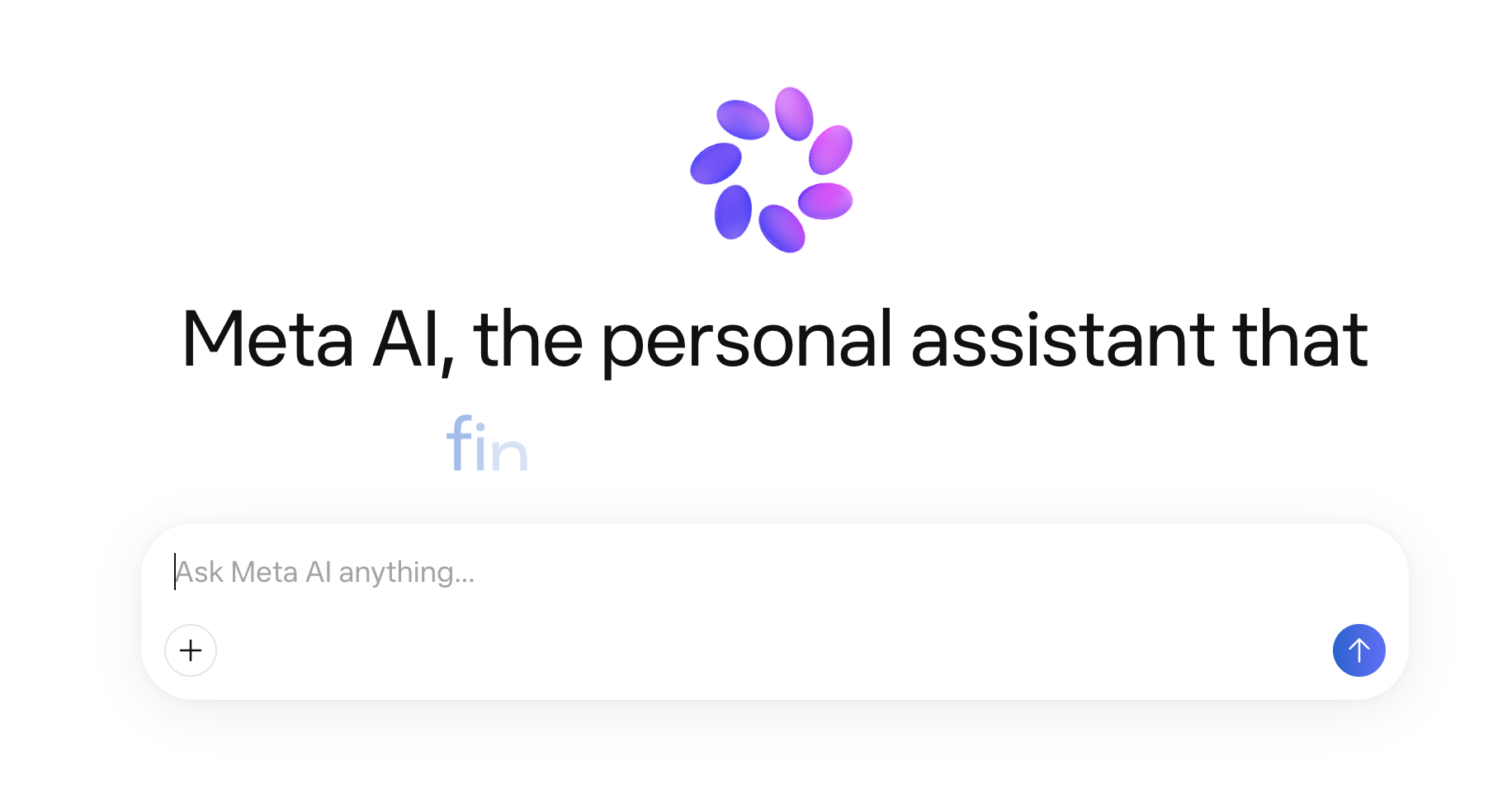
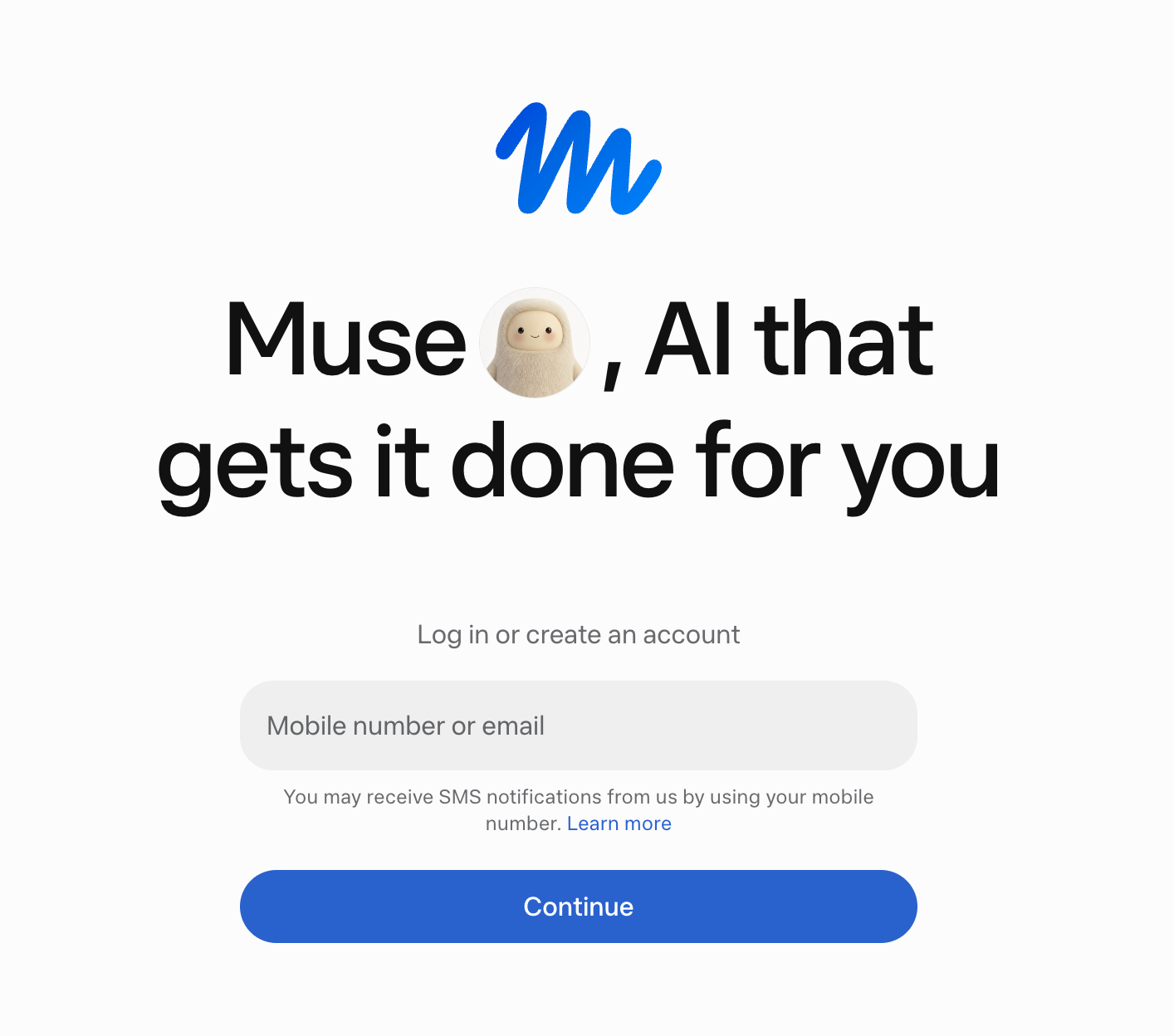
Screenshots of Meta AI vs Muse AI, showcasing their different logos, and they are (at the time of writing this) two different tools. One is a chat AI and the other is an AI Agent.
And if you are confused by all of this, you are in very good company. People who work in tech for a living mix these two up. I mix these two up, and I teach this stuff. Meta named two different tools like cousins and then put them in overlapping places, so of course everyone is squinting at their phone trying to work out which one they are talking to. For now, the cleanest way to hold it in your head is the screenshots above: if it chats with you, that is Meta AI. If it goes and does things for you, that is Muse.
One more thing worth saying, because it will matter later. We started with Meta AI, the chat assistant. Muse arrived after, as the agent. My expectation is that these two keep moving closer together over time, more blended and more interchangeable, until the line between them matters a lot less than it does today. There is a Future section further down with where I think that goes, because the glasses are where it gets really interesting.
How It Works, in Plain Language
You talk to Muse the way you would talk to a person. Plain sentences, not commands or code. "Compare these three flights and tell me which one gets me home without an overnight layover." "Read this long document and pull out every deadline in it." "Draft a reply to this email in my voice, and show me before you send anything."
Muse then goes and does the legwork: searching, reading, comparing, drafting, building, and it comes back with the result for your review. You correct it the way you would correct a new assistant, in plain words, and it remembers the correction for next time. The more real work you hand it, the better it gets at working the way you like things done. That is really the whole model. You direct, it does, you approve.
Pro tip #1: use the microphone. See the little microphone symbol? Use it, and just talk at Muse. Get comfortable letting your train of thought go verbally, the way you would explain something to a person sitting beside you. Half my work with Muse happens out loud, walking around, coffee in hand, thinking in full sentences instead of typing in fragments. Talking is faster than typing and, for most of us, it is how we actually think.
Pro tip #2: do not correct your spelling. When you do type, just power through. Do not backspace, do not fix the typos, do not tidy the sentence. Muse gets it, context makes your meaning obvious, and the minute you spend polishing a message to an AI is a minute you will never get back. Get the information out of your head quickly and efficiently, however it comes out. Fast and messy beats slow and perfect, every single time.
What Does It Cost?
You can start free. Muse has a free tier, so you can try it properly without spending anything. For people who use it heavily, there are paid plans that raise how much you can ask of it each week. I am on the Power plan at CA$22 a month, and the top tier is called Maximum at CA$109 a month. Those are the Canadian prices shown in my own app, and pricing in other countries will differ. For most people reading this, free or Power is plenty to start.
There is also Muse for Small Business, which is worth knowing about because the name makes it sound like a separate product you have to hunt down. It is not. It is simply Muse aimed at business owners and their everyday work. If you run a business, you are already the audience, and there is a whole section for you further down.
Now the Fun Part: What Can You Do With It?
Definitions only get you so far. This is where Muse stops sounding like a product description and starts sounding like something you would actually use. Here are the first five tasks I point everyone to, all of them real, all of them copyable today.
My one rule for your first week: small and real beats big and theoretical. Do not ask Muse to revolutionize your life. Ask it to do one normal thing that is currently sitting on your to-do list, and watch how it works.
1. Research something properly, with the receipts
Start with a question you have been meaning to look into and never have an evening for. A purchase you are dithering over, a trip idea, a topic your work keeps circling. This is the task I suggest first for a reason beyond it being useful: it needs no accounts connected, no permissions granted, nothing. You just ask, and you immediately see how Muse thinks.
Copy and paste this to start, and fill in your own version:
I am deciding between [option one] and [option two]. Research both properly, compare them on [price, quality, what matters to you], and bring me a recommendation with the sources you used, so I can check them myself.
Asking for the sources is the habit worth building from day one, because once Muse shows its work and you have spot-checked it a few times, you learn very quickly, usually inside that first task, both what it is good at and how to keep it accurate, and everything else in this list builds on exactly that.
2. Plan a trip and compare your flight options
Muse is wonderful at the research-heavy parts of travel, the twenty-tabs-open comparing that eats an evening. On my own trips it has compared flight options against what I care about, checked the trade-off between a cheaper fare and an awful travel day, and put the final choice in front of me.
I need to fly from [your city] to [destination] around [dates]. Show me the best options if I prefer reasonable prices, no overnight layovers, and flights that leave at sane hours. Explain the trade-offs, and do not book anything without me.
That last line of the prompt is doing real work, because the pattern you want is Muse showing you the options along with its reasoning, you making the pick, and nothing getting booked until you say go.
And when I say it can book, I am speaking from experience, not hypotheticals. I have had Muse research flights and carry the purchase all the way through to completion inside my own Alaska Airlines account, with me approving the final buy. I have also had it go the other way: when I asked Muse to purchase an American Airlines flight for me, the airline's site blocked it as bot traffic, and I finished that booking manually myself. Both outcomes are worth knowing about. Some sites will let your agent complete the job, some will not, and you find out which is which by trying. You never have to hand Muse the purchase step at all, plenty of people will happily keep it at research and comparison forever, and that alone saves the evening of tabs. But it can book, when the site allows it and when you have decided you are comfortable with it, and I know that because I have watched it do it.
3. Turn that pile of business cards into contacts
If you have ever come home from a conference with a stack of business cards and good intentions, you know those cards usually die in a drawer. Take photos of them and ask Muse to turn them into proper contacts in your CRM instead. I did exactly this after a recent event: a stack of cards became real, organized contacts I can actually follow up with.
Here are photos of business cards I collected. Create a contact for each person with their name, company, and details, and note where I met them.
Check its work against the cards before you rely on it, the way you would check anything a new assistant typed up. Then enjoy the very satisfying feeling of throwing the pile away.
And if you want to see how far that same idea goes, here is my own bigger version. I have used Nimble CRM since 2017, which means nine years of contacts piling up, and my database was a hot mess: the same people in there two and three times under slightly different records, outdated details, years of accumulation. This fall I had Muse audit the entire database with me. Working through it together, with the merge decisions staying with me and a full backup taken before anything was touched, we merged 289 groups of duplicate records, deleted 356 copies, and took the database from 9,355 contacts down to 8,999 clean ones. Eight groups of records had conflicts tangled enough that Muse set them aside for my judgment instead of guessing, which is exactly what I want an assistant to do with my customer data. Years of CRM shame, cleaned up in one project.
You do not have to connect your customer data to Muse if you do not want to, plenty of people will draw their line well before their CRM and that is a perfectly reasonable line. I am sharing this because it is what Muse did for me once I decided the cleanup was worth more than my hesitation, and I stayed in the approval seat for every merge along the way.
4. Build something real, a page, a document, a whole project
This is the task that changes how people think about Muse. It does not just draft rough notes for you to rescue. It builds finished things you review and use. I have had Muse build a webinar with me, the session itself and the ads to fill it, working from my direction the whole way through.
Start smaller than a webinar, though. Try:
Build me a one-page guide I can send to new clients explaining [your process]. Keep it friendly and plain-language. Show me a draft before you call it done.
You stay the creative director the whole way through while Muse does the production work underneath you, and that split, you deciding what good looks like while it does the building, is where the magic lives.
My favourite small example of this is not business at all. This fall I had a whole pumpkin photoshoot idea in my head for Living Vicariously, the pumpkin-head kind, locations around downtown Victoria, a very specific magical-fun energy, and a friend I needed to bring into the plan. Explaining all of that over text would have been fifteen messages in bits and pieces, half of it lost. So instead I explained the entire idea to Muse and had it build me a landing page that laid the whole thing out: the concept, the locations, the pumpkins we would need, the tools, and the fun of it. Then I sent my friend one link. The page was the brief. He read it, got it instantly, and showed up knowing exactly what we were doing. The shoot was a success, and you can see the results here:

See the pumpkin-head photoshoot on Facebook
5. Put Muse on watch duty
Some of the best Muse tasks are the ones you set once and then forget about. Tell Muse what to watch and the number that matters, and it checks on a schedule and only speaks up when something is worth your attention. I have it watching flight prices for a trip to Ecuador next year, with strict instructions to speak up only if the fare drops below my number.
Watch the price of [the flight, the product, the thing]. Only message me if it drops below [your price]. Otherwise, do not message me at all.
Most of the time it says nothing at all, which is exactly what you want from a good assistant, one that does not fill your day with noise and only taps your shoulder when it counts.
Once you get a taste for it, you start handing Muse all kinds of things to keep an eye on. Mine watches concert ticket prices for a show I want to see next spring, so I will hear about it if the price drops instead of refreshing the page like a hopeful teenager. It runs a twice-daily scan of Meta news and only brings me the genuinely new things that matter for my work, the features, the launches, the ads platform changes. It checks my new Instagram followers and flags the established, interesting people worth noticing, the ones who would otherwise slip past in the list. It keeps a weekly eye on ultralight gear deals here in Canada for my hiking life, tracks the open projects in my business so nothing I care about stalls out of sight in a chat thread somewhere, and as of this week it even fact-checks my own blog monthly, watching Muse's pricing and the Ray-Ban glasses news so this very post gets updated when the world changes. Anything with a number, a date, or a change you care about can become a watch, and every watch you set is a small piece of mental clutter you get to put down.
What Else Can It Do?
Once you are past the starter tasks, the range gets fun. Here is how I think of it, grouped the way life actually comes at you rather than by feature lists.
In your everyday life, it can research the thing you have been meaning to look into and bring back a proper summary with sources, compare products before you buy, keep track of household projects, draft the email you have been putting off, and hold the details of things so your brain does not have to. One of my favourite examples belongs to my friend Julie, who shops at Costco and kept watching things go on sale two weeks after she bought them. Her Muse now watches her Costco purchases, and if a price drops inside Costco's price-adjustment window, it flags it so she can take her receipt in and file for the difference. Small system, very satisfying job.
It can run the annoying little errands, too. This October I got a parking ticket, and here is the entire workflow, because the workflow is the point. I took a photo of the ticket in my hand, sent the picture to Muse, and asked it to take care of it for me. That was my whole contribution. Muse read the ticket, found the city's payment portal, confirmed the actual amount owing was CAD $30, brought that number back to me, and only paid after I approved the amount and chose which card to use. A ten-minute chore I would have procrastinated on for a week, done in one short exchange, with me making the money decision and Muse doing the clicking. That split, I decide, it executes, is the whole relationship in miniature.
When you travel, it can compare routes and fares, keep your confirmations organized, watch prices after you book, and pull your day together when flights move around. Travel days are chaotic enough. Having one place that knows the whole plan genuinely helps.
For your work, it can draft and polish writing in your own voice, build documents, pages, spreadsheets, and presentations, organize contacts and follow-ups, and keep multi-step projects moving by remembering where everything stands. In October I spent two flights home working at 35,000 feet, directing Muse through a genuine workday: an ad campaign launched, a CRM audited end to end, a video filmed and posted, a blog refresh drafted, book materials prepared. I made every decision and caught every error. Muse did the heavy lifting in between. That day is the clearest picture I can give anyone of what working with an agent actually looks like.
And it remembers. Tell Muse once how you like things done, your preferences, your people, your ongoing projects, and it carries that forward from one conversation to the next. You are not starting from zero every time you open the app. That memory is a big part of why it starts to feel less like a tool and more like an assistant who knows your world.
Meta Muse for Small Business
If you run a small business, this is where I think Muse gets seriously interesting, and it is most of my world, so let me spend a minute here.
The everyday work of a small business is exactly the stuff that piles up: the follow-up emails, the content you should be posting, the contacts scattered across inboxes and notebooks, the ads you need live by Friday. That surrounding legwork is where Muse earns its keep.
Meta clearly agrees, because at the end of September 2026 it launched Muse for Small Business in the US and Canada, a version of Muse shaped specifically for owners. Meta's own line about building it is that small businesses told them they are "short on hours, not ideas," and that is the whole small business experience summed up in one sentence. What the small business version adds is connections and context. It plugs into the tools a business already runs on: your Facebook Page, your Instagram professional account analytics, and your Meta ad accounts on Meta's side, and then tools like Shopify for your storefront, QuickBooks for your books, Stripe for payments, Klaviyo for email marketing, Canva and Figma for design, and Slack, Notion, Asana, and Zoom for the day-to-day, with the option to build custom connectors for anything it does not already speak to. Because it can see across those, it starts out knowing what your business sells, how your brand sounds, and what your customers ask about most, instead of you re-explaining your business in every conversation.
The jobs Meta focused it on are the ones owners actually drown in. It can analyse your sales and marketing performance and tell you what is working, draft campaigns and build growth plans aimed at finding new customers, review your expenses and flag the odd ones, and flag customer messages that need your attention so nothing sits unanswered in an inbox. You can also hand it a goal in plain words, "find new customers" or "help me run my business," and it works toward that across the connected tools rather than waiting for one tiny instruction at a time. Through all of it, the approval rule holds: nothing gets published, sent, or spent without your say-so. It is free with usage limits, with subscription plans if you want more, and Meta says more business connectors and skills are coming in the months ahead.
What This Has Looked Like in My Own Business
When I ran my Muse webinar this fall, Muse built the whole production around me. It connected to my Zoom account and created the webinar there, registration and all. It designed the header graphics and the full set of promotional graphics in my brand, the tiles and images I posted to fill the seats. It prepared the email campaign to my list. And it built the Meta ad campaign that promoted the webinar, the campaign, the ad set, and sixteen ads, end to end. I did not hand-build any of those pieces. My job was the directing: I reviewed everything, asked for changes, caught the mistakes, and approved each piece before it went anywhere. The building, the part that used to take me days of clicking and designing and uploading, happened around me while I got on with the work only I can do. It drafts my follow-up emails after events and helps me prep for speaking sessions, turning my rough notes into talking points I can actually use. It helps me with my calendar, the briefings, the rescheduling puzzles, the "find me a time that works for both of us" dance that used to eat half an hour at a time, because I shared my calendar in. Email is a different story in my setup, and this distinction is the one I most want people to copy. I do not connect my own inbox to Muse at all. Instead I set Muse up with its own email address inside my Google Workspace, the way you would set up a new employee, so Muse and I can send information back and forth, drafts, confirmations, things that need actioning, while my real inbox stays completely separate and untouched. Logins follow the same thinking, with a wrinkle worth explaining. Some of my credentials are stored securely for Muse to use when a task needs them, the way you would hand a trusted assistant a spare key for a specific errand. But where I want Muse to have different permissions than me, it gets its own login, tied to its own email address. My WordPress site is the cleanest example: Muse signs in as its own user with editor-level permissions, enough to build and load drafts, while my own account stays the only administrator, and I am the one who presses publish. Muse can do real work inside the site without ever holding the keys to the whole building. And if you connect your Meta business account, your Facebook Page and Instagram business profile, it can help you compose and post on your socials, pull insights on how your content is performing, and do strategic work like recommending accounts worth following in your niche. Every one of those ended with me reviewing and approving before anything went anywhere, because that is how I run it, and I would suggest you run it the same way.
And then there is my favourite example, because ads are my whole world. I have launched full ad campaigns by simply talking to Muse. Not clicking my way through a build, not filling in a wall of fields. Talking. I describe the goal out loud, who the ad is for, what it should say, the budget I have in mind, and Muse assembles the campaign from that conversation. Then I review every piece of it, the targeting, the copy, the numbers, and nothing spends a dollar until I say go.
My favourite version of this happened at lunch with a friend. An actual lunch, at an actual table, my attention on my friend and our conversation. In between, the way you would subtly check your messages at the dinner table, I gave Muse little confirmations and approvals as the build moved along. A glance, a yes, a small correction, back to lunch. By the time we were done eating, a full campaign had been built, reviewed, and launched, and my friend got a proper lunch with me, not an afternoon of watching me stare at a screen. That is the part people underestimate: the approvals are small enough to fit inside a real life. I have spent years teaching people to build ads the long way, and I still check Muse's work like the professional skeptic I am. But the build itself, the tedious mechanical part that used to eat an afternoon, now starts with a conversation. If you run ads for your business, sit with that for a second.
The pattern to notice: Muse is best at the legwork that surrounds your expertise. It will not run your business, and it should not. But the hours around your actual skill, the organizing and drafting and comparing and following up, those hours are very much on the table.
One warning belongs right here, though, because Muse can be powerful enough that it is easy to lean on it too hard. Work with Muse on tasks you can actually perform yourself. That is my standing advice, and I hold my own business to it. If Muse ever went down for a stretch, or a pricing tier changed in a way that did not work for me, my business would slow down, sure, but it would not stop, because everything Muse does for me is something I know how to do with my own two hands if I have to. The moment you build a process that only Muse can run, you have not saved yourself hours, you have built yourself into a work stoppage waiting for an outage. Treat it as leverage, not as a load-bearing wall. Let it save you the hours, keep your own skills and your own access to everything that matters, and never let any tool, this one included, own your business.
What to Connect First
Muse gets more useful as you connect your accounts, and it is tempting to connect everything on day one. Resist that. Connect one thing, use it for a few days on real tasks, and learn how Muse behaves with it. Then add the next one.
If you are not sure where to start and you run a business, start with your Meta business account, the one holding your Facebook Page and Instagram business profile. I know connecting your calendar is the suggestion Muse itself will make, but for a business owner the social connection is where the value shows up immediately, help composing and posting your content, insights on how it is performing, and strategic work like follower recommendations for your niche.
Once it is connected, here is a first prompt worth copying exactly, because it makes Muse prove its usefulness in about two minutes:
I just connected my Facebook Page and Instagram business profile. Look at my posts from the last month and tell me three things: what performed best and your best guess at why, what fell flat, and five accounts in my niche that are worth following, with a reason for each one. Then suggest three post ideas for this week based on what my audience actually responded to. Show me your thinking first, and do not draft or post anything yet. Whatever you start with, make it one thing tied to a real task you already want done, not the thing a setup wizard happens to put in front of you first. One connection, one real job for it, a few days of learning how it behaves. Then the next one.
For reference, at the time of writing this, here is my own stack, what I have connected to Muse after a few months of adding one thing at a time: my Meta business account (my Facebook Page and Instagram business profile), the dedicated Gmail inbox Muse works from and the Google Calendar attached to it, Calendly for bookings, Canva, Zoom, Google Drive, and Zapier, which connects Muse to a bunch of the other tools my business runs on behind the scenes. Notice what that list is not: it is not everything I own, connected on day one in a burst of enthusiasm. It grew the way I am suggesting yours grow, one useful connection at a time, each added when I had a real job for it.
The connecting itself, and the account tangles that can come with it, are important enough that they get their own guide. That is the setup post, linked at the end of this one.
A Quick Word About Safety and Approvals
People ask me about this a lot, and I get it. Letting an AI into your email and calendar is a real decision, and some people have looked at tools like this and chosen to hold off for now. They have their reasons, and that is fine.
My setup runs on one simple principle: I am the director. Muse proposes, I approve. Nothing gets posted, sent, or bought without my yes. When you start, keep yourself in that approval seat for everything, and loosen up only where you have built real trust, task by task. If you want the full thinking on accounts, permissions, and keeping your most important inbox out of it entirely, the setup guide walks through all of it, including the pattern I use myself.
Quick Questions
Is Muse the same as Meta AI?
No, and the naming causes endless confusion. Meta AI is the blue circle assistant inside Facebook, Instagram, and WhatsApp that answers questions. Muse is Meta's personal AI agent: it takes on tasks, uses tools, remembers your work, and carries projects through. Meta AI answers. Muse does.
Do I need a Facebook account?
You sign in with a Meta account, which is the account that connects your Facebook, Instagram, and other Meta apps together. If you use Facebook or Instagram, you already have one. This is also the step where people most often get tangled, so the setup guide spends real time on it.
Is it really free?
There is a free tier, yes. Paid plans (Power and Maximum) raise the limits on how much you can ask of it each week. Most people can start free and know fairly quickly whether they need more.
Can it spend my money or post things without me knowing?
In my setup, no. Purchases, posts, and messages go through my approval before anything happens. Keeping yourself in the approval seat is a habit worth building from day one.
Where do I find the files Muse creates?
Documents, pages, and other things Muse builds for you are saved in your Muse workspace and attached to the conversation where you made them, so you can go back to that chat and open the finished piece. If you lose track of something, just ask Muse where it put it. It keeps better track of my projects than I do, which is a little humbling.
How do I actually get it set up?
That is the very next step, and it has its own guide, because doing it in the right order saves real headaches: How to Set Up Meta Muse.
Future: What Muse Will Be Able to Do
Everything above is Muse today. This section is about where it is heading, and I am keeping it in here on purpose, clearly labelled as future, because the direction matters and because when this changes I will come back and update this post.
The clearest place to see the future is the glasses. Meta's Ray-Ban glasses currently run on Meta AI. You talk to your glasses, out loud, the way you would talk to a person standing next to you, and they talk back to you through the frames. That part is not future, that part is now, and it is already a little bit magic. I used my AI glasses in Peru as a guided tour, standing in front of ancient buildings and asking what I was looking at, and getting the history back in my ear while I was still standing there looking at it. No phone out, no tour group, no little plaque to squint at. Just me, the place, and the story of the place, delivered while I took it in.
Muse is said to be coming to the glasses. I can't wait. It will be a game changer, and here is why. Meta AI in your glasses can answer. Muse in your glasses can act. Picture this: you are holding a friend's new purse in your hand, admiring it, and you look at it through your glasses, have the glasses snap a photo of it, and ask Muse to shop for it online for you and order it. The glasses see it, Muse finds it, Muse buys it, with your approval before anything is charged, the same director setup as everything else in this post. You never took your phone out of your pocket.
WOAH. Mind blowing. And it is not hard to picture, because every piece of it already exists separately today. The glasses that see and listen exist. The agent that shops and orders exists. Putting them together is the part that is coming, and when it lands, the line between Meta AI and Muse that I spent a whole section untangling up above starts to disappear. That is why I am not precious about the naming confusion. We are watching two tools grow toward each other, and the glasses are where they meet.
Ready to Get It Set Up?
If this post did its job, you now know what Muse is and you have at least one task in mind for it. Wonderful. The only thing between you and trying it is the setup, and setup is where I see people get stuck, not because it is hard, but because a couple of account gotchas nobody warns you about can eat an afternoon.
So I wrote the setup down properly, in order, with the warnings in the right places: How to Set Up Meta Muse. It walks you through creating your account without accidentally creating a second one, connecting your accounts safely, and the pattern I use to keep my own most important inbox completely out of it. Twenty minutes there, and you are back here picking your first task.
Come and Try It With Real People
Reading about Muse only gets you so far. Trying it alongside other people who are figuring it out too is better, so here are the two places I would send you.
I run a free webinar called A Peek Inside Muse, where I show the real thing, my actual screen, actual tasks, the directing and approving included. If you want to see what working with Muse really looks like before you dive in, that is the place.
And my free Facebook group, Muse It or Lose It, is a community of Muse users sharing real things they have had Muse do: systems they built, work it took off their plates, problems it untangled. Show-your-work is the whole idea, so it is a goldmine of tasks to borrow for your own first week.
Pick one starter task from this post, try it today, and come tell us how it went. What would you hand Muse first?
 Facebook
 LinkedIn