

Okay, can we talk about the part of getting started with a new tool that nobody puts in the shiny ads? The setup. The account screens, the stubborn login, the permissions page moment where you think, wait, what am I agreeing to here?
I work with Meta Muse hands-on, personally, inside the app every day, and I help other people get it running too. And the number one place people stall is not using Muse. It is the twenty minutes before using Muse, the accounts and connections part. None of it is hard once somebody explains the order things are meant to happen in, and the two or three little gotchas that trip up nearly everybody. So let's do exactly that. New to what Muse even is? My beginner guide covers that first. This post is for everyone who wants it set up right.
The quick answer: what you need before you start
To set up Meta Muse, you need a Meta account to sign in with, you need to be in a region where Muse is available (right now that includes the United States and Canada), and you need either the Muse app on your phone or a browser pointed at muse.ai. That is genuinely it. No special equipment or technical background needed, and you can start free.
One little caveat before we dive in. Muse is not the same thing as Meta AI, and Meta did not exactly make the naming easy. Meta AI is the blue circle chatbot inside Facebook, Instagram, Messenger, and WhatsApp. Muse is a separate personal AI agent, with its own app and website, that can do tasks for you across services you connect.
And one more heads-up: further down this page there is a short section called "One warning before you create anything, and please actually read this one." When you get to it, actually read it. It takes two minutes, and it is the part of this guide that saves people from the one account headache that is genuinely miserable to unwind later.
The easy version: how setup goes when everything is normal
Before we get into any of the snags, I want you to know how this actually goes for most people, because it is genuinely simple and I do not want the rest of this guide to scare you off. When your accounts are in normal shape, setting up Muse looks like this, and it takes about five minutes.
One, grab your everyday phone, the one you already use Facebook or Instagram on, and download the Muse app (or open muse.ai in your browser). Two, tap sign in, and here is the part that throws people, so you get to be ready for it. Because you are already logged into Facebook or Instagram on this phone, Muse already knows who you are, and it shows you your account, ready to go. If your Facebook and Instagram are connected together, you will see those profiles sitting there as little bubbles, and underneath, the email address attached to the account, which for a lot of people is whatever email their Facebook has been connected to for years, sometimes an ancient one they barely recognize. This is the moment people panic, so let me save you the panic. Those bubbles are not separate accounts you have to choose between and possibly choose wrong. They are all the same you, a single account with your connected profiles attached to it. And you do not need that old email's password, or to fix the email, or to do anything at all about it right now. It is simply your Meta Accounts Center account, pre-loaded. Tap to continue as you, accept the terms, and voila, you are in. Three, Muse will offer to connect your Gmail or your Google Calendar. You can just ignore that and move on, truly. Nothing about getting set up depends on it, and skipping is a perfectly good choice for today. If you would like one of them connected, go ahead, it takes a few seconds, and you can add or remove connections any time later in Settings. Four, ask Muse to do one small thing, like writing a first draft of an email you have been putting off. That is it. You are set up, and everything after this section is just in case.
Pro tip, from my own setup. I run a business, so I did one extra thing you are welcome to steal. Instead of connecting my own work email, the inbox that receives every password reset for every account I own, I set Muse up as its own separate user inside my organization, with its own email address and its own inbox, and that is the inbox it works from. My own mail stays completely mine, and Muse still has everything it needs to do its job. If you have a business domain, that little bit of separation is worth it, and I walk through the full pattern later in this guide.
Now the snags, so you never get stuck
Everything from here down is the insurance policy. Most readers will never need most of it, and if your five-minute setup just worked, skim happily and go play. But if you want to dodge the potholes before you hit them, or you are reading this because something already went sideways, this is the part that untangles it. Nothing in here is the normal path. It is the just-in-case path, here so a snag takes you two minutes to fix instead of ruining your whole first impression.
I say this from sitting beside real people while they set it up. My rule of thumb from those onboarding calls is simple: one snag is almost a hard no, and two snags is where most people abandon a tool and never come back. And on real calls, we often spend the first stretch before Muse even opens, tidying the account side, a Facebook Page floating free over here, an Instagram not connected over there. None of it is hard. It is just invisible until somebody points at it, which is this guide's whole job.
Create your account
Because there is no big shiny "register" button, a lot of people go hunting for a Meta Muse sign up page and assume they are in the wrong place. You are not. There is no separate registration for Muse. You download the app or go to muse.ai, you sign in with your Meta account, and that sign-in is your account being created. That welcome flow is the signup. If you have been going in circles looking for the form, consider it found, because there is no form to find.
If you do not already have a Meta account, you will be prompted to make one during that first sign-in, using an email address. Use an email you actually check and plan to keep, because this account becomes the front door to your Muse.
One warning before you create anything, and please actually read this one. If you already have a Facebook or Instagram account, make sure you are logged into at least one of them on your device before you open Muse for the first time. If Muse does not see an existing account to connect to, signing in fresh with an email can create a whole separate Meta account for you, sitting off by itself, disconnected from the Facebook and Instagram accounts you have had for years. Connecting and merging those accounts after the fact is a genuine headache, the kind that eats an afternoon and a piece of your soul. Thirty seconds of checking that you are logged in, before you start, saves all of it.
One more tip in the same spirit, because it decides whether your first five minutes feel easy or annoying. If you open Muse on a device you have never used to log into Facebook or Instagram before, a brand new phone, a borrowed laptop, a tablet that has been sitting in a drawer, Meta may put you through extra security checks first. Codes sent to places you no longer check, "was this you" confirmations, the odd loop of proving you are yourself. None of it is dangerous, all of it is a hassle, and it tends to happen at the exact moment you are trying something new. The smoothest first run, by far, is on a device where you already use Facebook or Instagram regularly, your everyday phone is perfect. Meta recognizes that device, the sign-in sails through, and you get to start with the fun part instead of the paperwork.
A quick word about the Meta Accounts Center, because nobody explains this part
Almost every small business owner I work with has never heard of the Meta Accounts Center, and it is the thing running the show behind their Facebook and Instagram, so let's fix that in one paragraph. Your Facebook profile, your Instagram account, and your Meta account are separate accounts, but Meta links them together under one umbrella called the Meta Accounts Center. You can see yours at accountscenter.meta.com, or inside the settings of either app, where it looks like this:
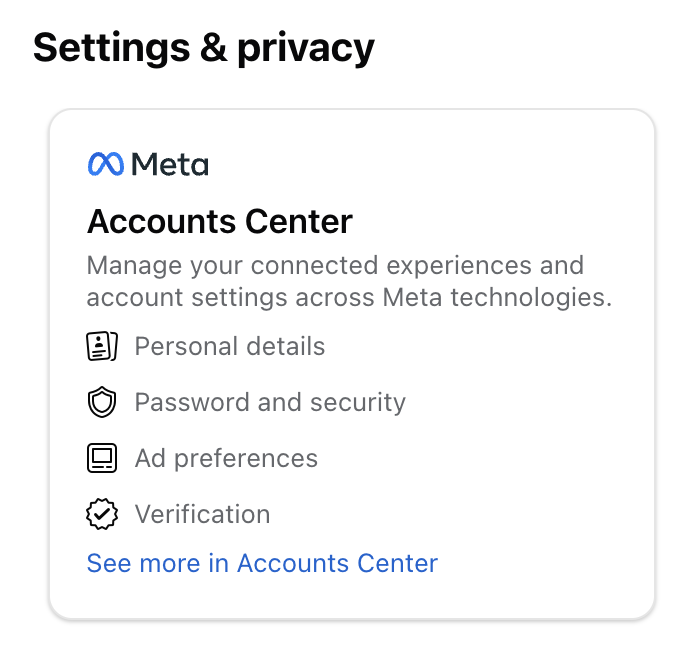
The Meta Accounts Center, sitting inside Settings and privacy. Personal details, password and security, ad preferences, and verification all live behind that one card.
That is where things like your password and security settings and your contact details are managed across those connected accounts, and it is how Meta knows that the person on your Facebook and the person on your Instagram are both you.
Here is why it matters for Muse. When you sign in to Muse, you are signing in with the Meta account that lives inside this structure. If your Facebook and Instagram are properly connected in your Meta Accounts Center, signing in through either one lands you in the same Muse, with the same work in it. If they are not connected, or one of them was set up years ago under a different email, that is exactly how people end up with the two-accounts problem I describe in the login section below. So before you set up Muse, do yourself one small favour: open your Meta Accounts Center once, look at the list of profiles and accounts, and confirm your Facebook and Instagram are sitting there together. Five minutes there is the cheapest insurance in this whole guide.
Here is the second gotcha, and it worries people, so let's name it. During signup on the free plan, Muse may ask you for a credit card. I know, it feels like a trap. From what has been reported, the card is there for age verification, to confirm you are an adult, not to sign you up for something paid without telling you. Only enter card details on the real signup screen inside the app or on muse.ai, and if a screen ever feels off, stop and come back to it later. Stopping is always allowed.
Meta Muse login: the part that matters more than you think
This is the section I wish somebody had handed me on day one, because the Meta Muse login looks completely ordinary, and it decides whether your setup life is easy or miserable later.
When you first sign in to Muse, you will do it one specific way. Maybe through Facebook, maybe through Instagram, maybe with an email and password. Whatever way you walk in the first time, walk in that same way every time, on every device. Here is the trap I see most: people sign in with Facebook in the app on their phone, then a week later go to muse.ai on their laptop and sign in with an email, and now they are staring at a fresh, empty Muse, panicking that everything is gone. Nothing is gone. They are standing in a second account they accidentally created. Same person, two front doors, two different houses.
So, on your phone, open the app and use the same sign-in method you used the very first time. On the web, go to muse.ai, nowhere else, same method again. If you ever land on a Muse that looks brand new and empty, do not set it up again. Log out, think about which way you originally came in, and come back through that door. Nine times out of ten, your Muse is right where you left it.
This is not theoretical, by the way. On one of my onboarding calls, the sign-in screen greeted a client with her name and, attached to it, "plus five accounts," and she froze, exactly the way you might. Those were her Meta Accounts Center accounts, all hers, all fine. On another call, sign-in surfaced the client's private personal account, registered to a very, very old Hotmail address, and there was a solid minute of "oh no" before we carried on. Also fine. The personal account was precisely the right account to be connecting, and the old email was just the address her Meta account has carried for years. If your screen shows you something along these lines, you are looking at normal.
Two habits that will save you grief. Keep your Meta account password in a proper password manager, you will need it again. Do a quick password roundup before you start connecting things too, because you may be asked for a Facebook or Instagram password along the way, and the most universal sentence in all my onboarding calls is some version of "who even knows their passwords anymore." And make sure the phone number and email on your Meta account are current, because that is where verification codes go.
Connect your accounts safely, in the right order
Here is where Muse starts being genuinely useful, because connectors are how you link the services in your life, like Gmail and Google Calendar, so Muse can actually work with them. This is also where people get nervous, and I think the nerves are healthy. You are deciding what an AI gets to see. And if your first instinct when Muse asks about your email and calendar is "yeah, I don't want that," you are in good company, a client said those exact words to me seconds into her first session. My answer to her is the same as step three in the easy version: ignore it for now. Connecting is always your choice, on your timing.
Connect one thing first. Not everything, one thing. And here my recommendation differs from what Muse itself will suggest to you. Muse will nudge you toward your calendar, because it feels low stakes. If you run a business and you have a Facebook Page and an Instagram business profile, I recommend starting with your Meta business account instead. That is the connection that makes Muse useful for your business right away: it can help you compose and post on your socials, pull insights on how your content is performing, and do genuinely strategic work like recommending accounts worth following in your niche. A calendar summary is nice. A working social media assistant is a much better first impression. If you do not run a business, connect whichever one thing sounds most useful and leave the rest for later. When you connect, Muse takes you to that service's own secure sign-in screen, Google's screen for a Google service, and that is where your password goes. It never gets typed into a chat with Muse, and if any tool ever asks you to type a password into a chat box, that is a hard no, close the tab. Real connections happen through the service's own sign-in page, and your credentials live in protected storage.
Start read-only where you are given the choice. Read-only means Muse can look but not touch, it can tell you what is on your calendar or find an email for you, and it cannot send, delete, or change anything. Live there for your first few days while you learn what Muse is good at, then widen access on purpose, service by service, instead of all at once at 11 pm because a setup wizard made it look easy.
Then set your Permissions to "Always ask." You will find Permissions in Settings. Always ask means Muse checks with you and waits for your approval before it takes an action. While you are in Settings, visit Data controls too and make a deliberate choice about whether your activity helps train Meta's models, instead of leaving the default. These two screens take maybe three minutes, and they are the difference between feeling like Muse works for you and lying awake wondering what you agreed to. You are the director of this thing. The settings are how you direct.
The multiple accounts problem, and the pattern that solved it for me
Now for the problem almost nobody is writing about, and it is the one that matters most to anyone with a business, a side project, or just a complicated digital life. Most of us do not have one email account, we have several, and the important one is not the dusty personal one. It is your work email. Think about what actually lives in your main work inbox: every password reset link for every account you own gets sent there. That inbox is the master key to your entire digital life. Of course I want Muse's help with my work. I did not want to hand it the master key to do it, and Muse's connectors connect one account at a time, so you have to choose, and that is where people freeze, because connecting that inbox feels too exposed and connecting nothing makes Muse useless.
Here is the pattern I landed on with my own setup, and you are welcome to steal it. I did not connect my work email at all. Instead, I set Muse up the same way you would set up a brand new employee: as its own completely separate user inside my organization. I use the Google ecosystem for my business, so I went into my Google admin dashboard and created a new user on my own domain, with its own fresh inbox, the way you would give a new hire their email address on their first day. That user is the one Muse works from. Anything I want handled, I forward into that inbox or have sent there in the first place, and my real work calendar is shared into that same account, so Muse can see my actual schedule. My own email, the one holding all the password resets, is never connected at all.
Read that again, because it is the whole trick. You do not have to choose between giving a tool your entire digital life and giving it nothing. You can build a little front room, connect that, and keep the rest of the house yours. Your assistant ends up with exactly the access it needs to do the job, and not one thing more. If you have been avoiding connecting anything out of a perfectly reasonable privacy instinct, this is usually the moment it clicks.
Untangling: when setup goes sideways
Maybe you are reading this because something already went a bit sideways. Deep breath. Almost every setup problem I have ever seen is one of these, and every one has a fix.
You signed in a different way than the first time. Your Muse looks empty and new. Log out completely, sign back in using your original method, on the real app or muse.ai. This fixes most "Muse lost everything" panics, because nothing was lost, you were just in the other house.
The verification code never arrives. Check the contact details on your Meta account first, codes go where the account says they go, and accounts are full of old phone numbers and dusty emails. Check spam folders, then request one fresh code and give it a few minutes to land.
There are codes everywhere and you are losing track of which is which. Welcome to the club. One client, mid-setup, said it out loud for all of us: "So many verification codes." And on another call, someone named the exact moment she used to give up on tools entirely: hitting a verification screen and not knowing what to do next, or where to even find the code. The code you need is the most recent one, it goes to the phone number or email on the account you are working with, and being asked to log in again when you connect something new is normal, that is you granting a fresh permission on purpose. Once something is connected, it stays connected.
You connected the wrong Google account. If more than one Google account is signed in on your device, it is incredibly easy to approve the connection for the wrong one, and then Muse is cheerfully reading an empty calendar. Go to Settings, then Connectors, disconnect it completely, and reconnect while watching the account name on Google's sign-in screen like a hawk.
A connector stopped working. Something that worked last week suddenly cannot see anything. Connections expire or go stale, and the standard repair is unglamorous: disconnect the connector in Settings, reconnect it fresh through the service's sign-in screen, and test it with one small ask. Most of the time that is the entire fix.
It said connected, and then it wasn't. Screens in the back end of Meta occasionally fib about connection state, and I have watched it happen in both directions: a connection that looked done and had not held, often because the Instagram account first had to be upgraded to a professional account before it could connect at all, and a Connect button that seemed to do absolutely nothing while the connection had actually succeeded behind it. My mantra on every onboarding call, and now yours: refresh is our best friend in the back end of Meta. Before you redo anything or panic, refresh the page and check the true state of things.
You got "something went wrong," or a spinner that never ends. That screen reads as broken, and it has ended more setups than any real problem I know. One client told me that left on her own, she would have stopped right there, certain something was broken, or that she had broken it. She hadn't, and neither have you. Wait a beat, refresh, and try once more. Slow and stuck is normal back here.
It says Muse is not available in your region. Muse is currently available in the United States and Canada, so if you are somewhere else, that message is accurate. If you are in the US or Canada and seeing it anyway, double-check that you are on the real app, because copycat apps love showing it too, which brings me to the last one.
Copycat login sites. Fake pages and lookalike apps exist, and some of them would love your password. The real Muse lives in the official app from your phone's app store and at muse.ai on the web. Before you type credentials anywhere, look at the address. If it is not muse.ai, do not sign in. And never give your password to a person who offers to register or set up Muse for you, no matter how helpful they sound. The straight answer on that one: real help never needs your password. Ever.
Frequently asked questions
Do I need an invite code to join Meta Muse?
No. In the United States and Canada you can sign up directly with your Meta account, no code required. Invite codes float around online because they come with little bonus offers attached, but you should never pay for one or hand your login details to anyone offering one.
Can Muse see my password?
No. When you connect a service, you sign in on that service's own secure sign-in screen, and your credentials are stored in protected storage, never typed into your chat with Muse. If anything ever asks you to paste a password into a conversation, stop, because that is not how real connections work.
I connected the wrong account. Now what?
Do not build on top of it, fix it now while it is small. Settings, Connectors, disconnect, then reconnect the right account slowly, reading the account name on the sign-in screen before you approve. Five careful minutes today beats untangling a month of connected wrongness later.
If you would rather a real human just did this with you
Everything above is the do-it-yourself route, and I genuinely believe most people can do it. But I also talk every week to people who hit one wall too many, or who would rather have a person beside them for the account and permissions decisions, because those are annoying to unwind later.
That is a lot of what I do here at The Digital Gal, all the time. I sit with real people, on a call, screen shared, and we do their setup together: accounts untangled, the right things connected in the right order, permissions sitting at a level that feels right, and a first couple of tasks done before we hang up, so they leave knowing it works. If you worked through this guide and you are up and running, I am thrilled, truly. And if you read the untangling section with a sinking feeling of recognition, you can book an hour with me and we will get yours sorted out together, start to finish. One hour, your accounts, done properly.
One more thing, since so many people have been asking: this month I am running a special booking just for Muse setups. A one-hour setup session with me is $100 USD this month, instead of my regular rate of $249 USD. I have set aside a batch of hours for exactly this, and when those hours fill, they are gone, and the regular rate comes back. Contact me for the booking link, and if you have been meaning to get Muse running properly, this is a good month to stop meaning to. What part of setup is giving you the most trouble?
 Facebook
 LinkedIn